Okta SSO

Set up Okta as your SAML SSO provider for Docupilot.

Prerequisites

  • Ensure you have a verified domain added to your Docupilot Organisation. Learn more on adding a Verified Domain here.

  • To enable SAML Single Sign-On (SSO) with Okta, you need to be the organization owner in Docupilot.

Configuring Okta SSO

To enable Single Sign-On (SSO) on Docupilot using Okta, follow the steps below:

Step 1: Connect Okta in Docupilot

Connect SSO on your Docupilot account
Configuring Okta SSO
  1. Navigate to Login Methods tab in your Organization settings.

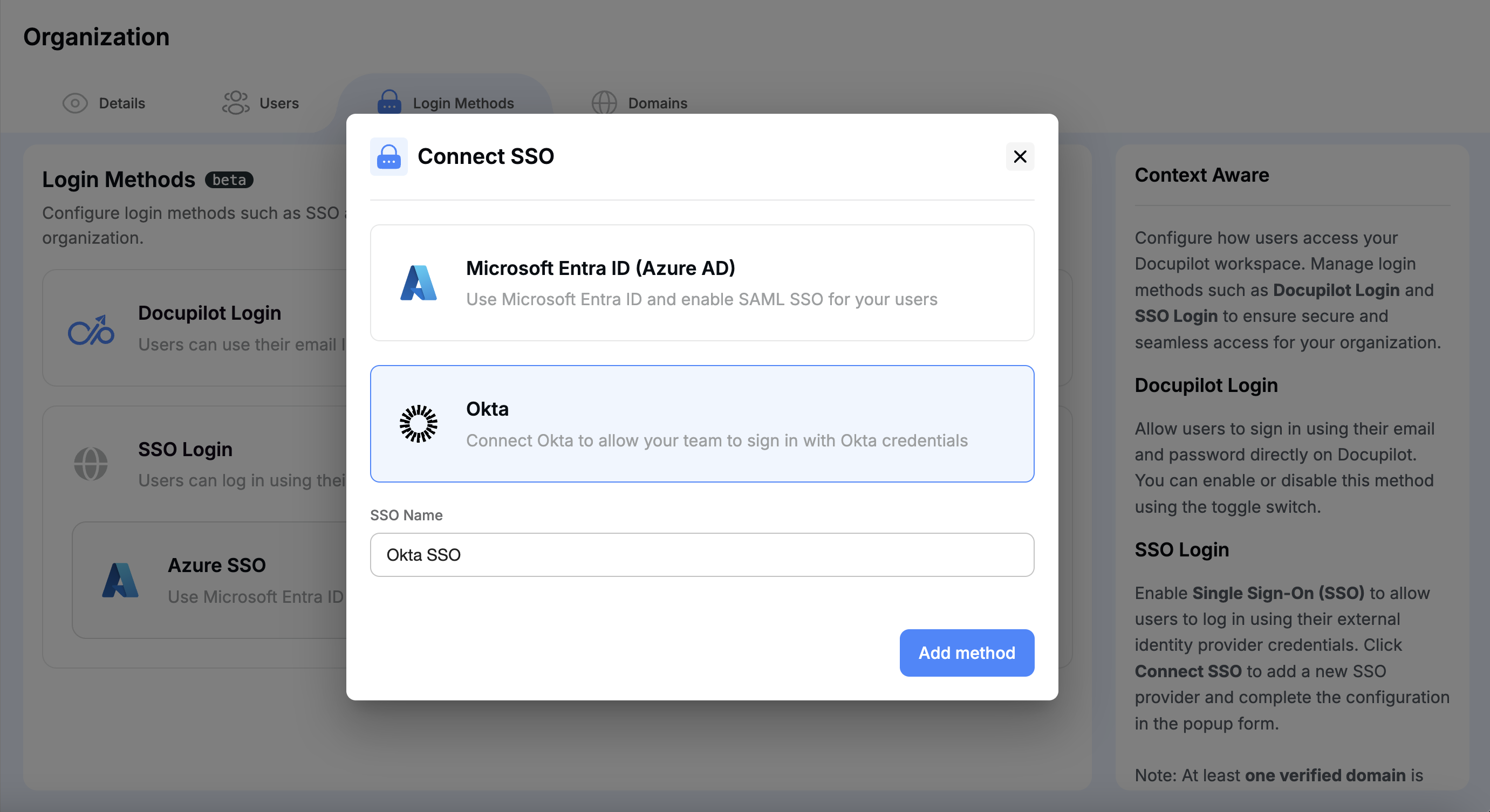
  2. Click Connect SSO under SSO Login method, and select Okta from the list.

  3. Enter a display name for this SSO connection (for your own reference).

  4. Click Add method.

    Adding Okta SSO Method

Step 2: Configure SAML SSO in Okta

A. Adding Docupilot App Integration

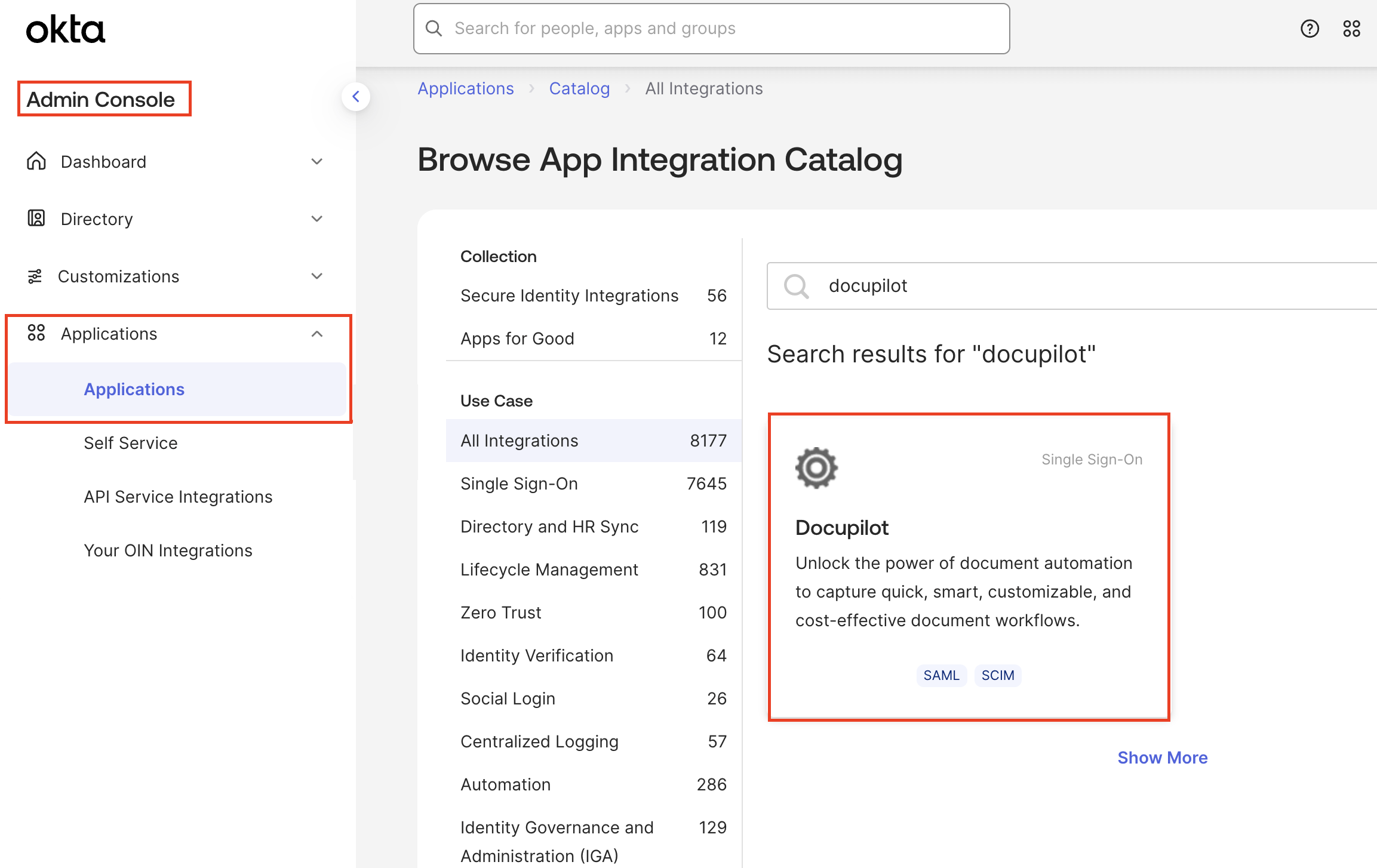
  1. Log in to your Okta Admin Console.

  2. Navigate to the Applications, click Browse App Catalog and search for Docupilot.

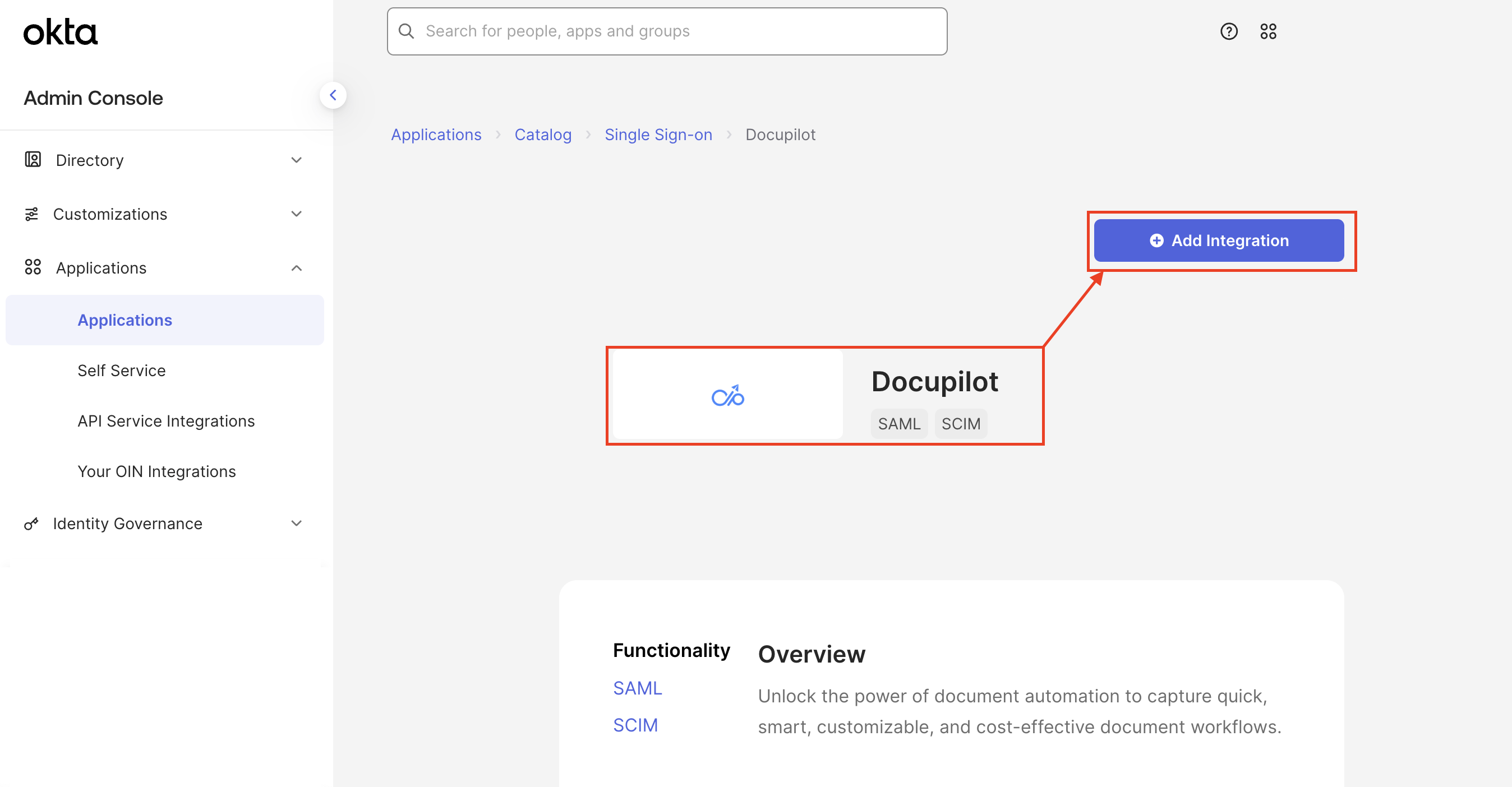
  3. Select the Docupilot card and click on Add Integration.

    Search for Docupilot on Okta
    Adding Docupilot Integration on Okta
B. Copy metadata from Docupilot to Okta

In the newly added integration,

  1. Under General Settings set a desired Application label (ex: Docupilot)

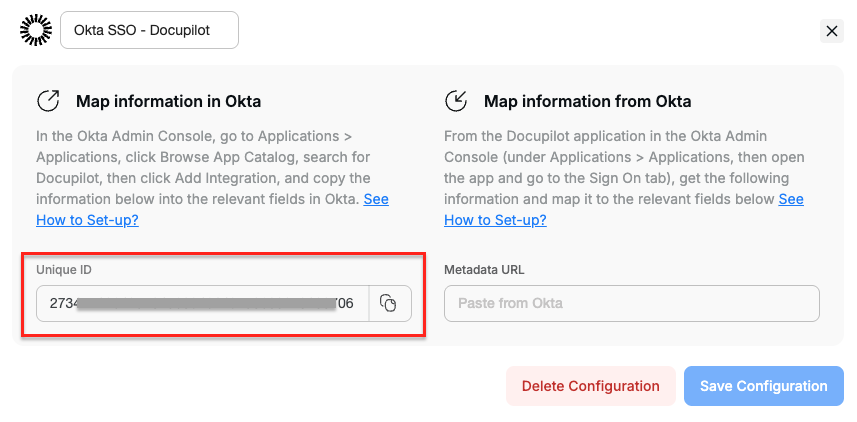
  2. From Docupilot, copy the Unique ID from the set up window and paste it in the respective field in Okta.

    Copy Unique ID for new Okta SSO Integration
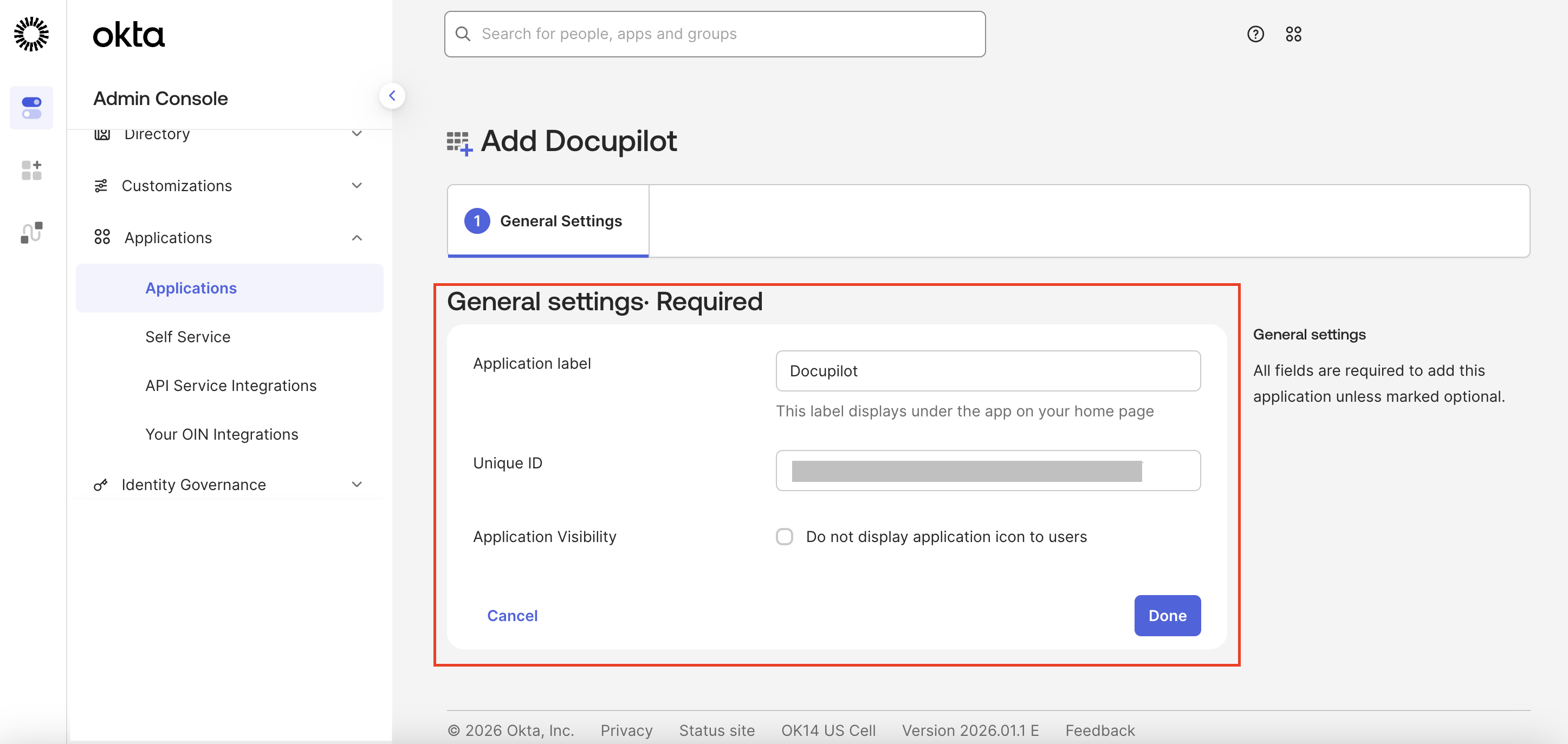
    Paste the Unique ID from Docupilot into Okta
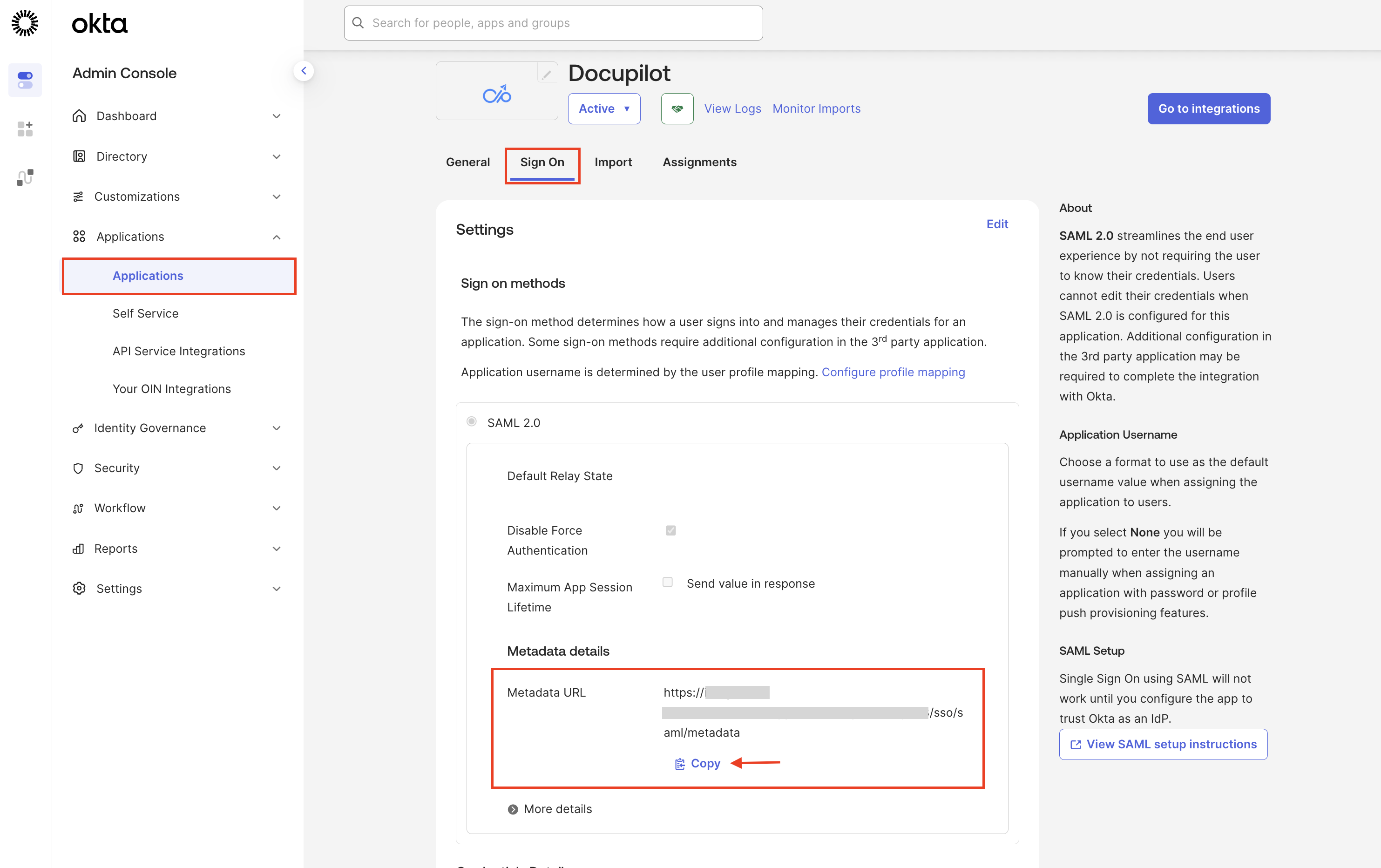
C. Copy metadata from Okta to Docupilot

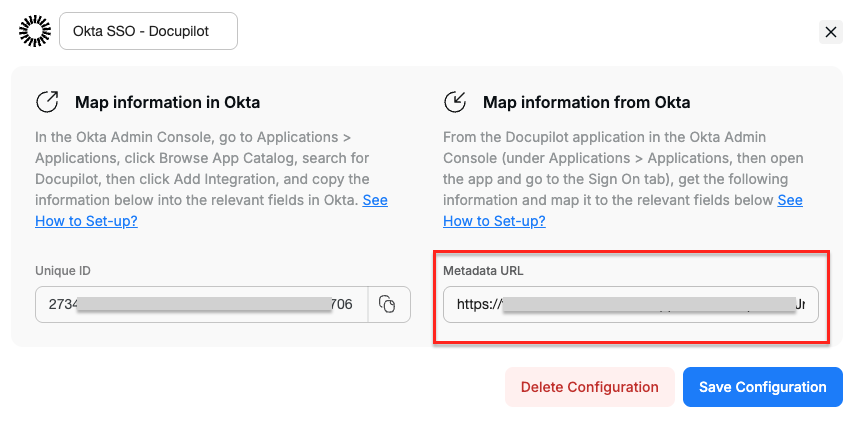
  1. In Okta, under the newly created application, navigate to Sign On tab and copy the Metadata URL.

    Copy Metadata URL from Okta
  2. Paste Metada URL in Docupilot and click Save Configuration

    Paste Metada URL in Docupilot and Save Configuration

  3. Enable the newly added SSO Configuration in Docupilot to activate it.

Step 3: Login via Okta

Add users to your Docupilot Application in Okta. Read Assign applications to usersarrow-up-right for detailed steps. Once assigned, users can log in to Docupilot using Okta SSO from the Organization Login page. If a user doesn't already have an account under your organization, one will be created automatically upon first login.

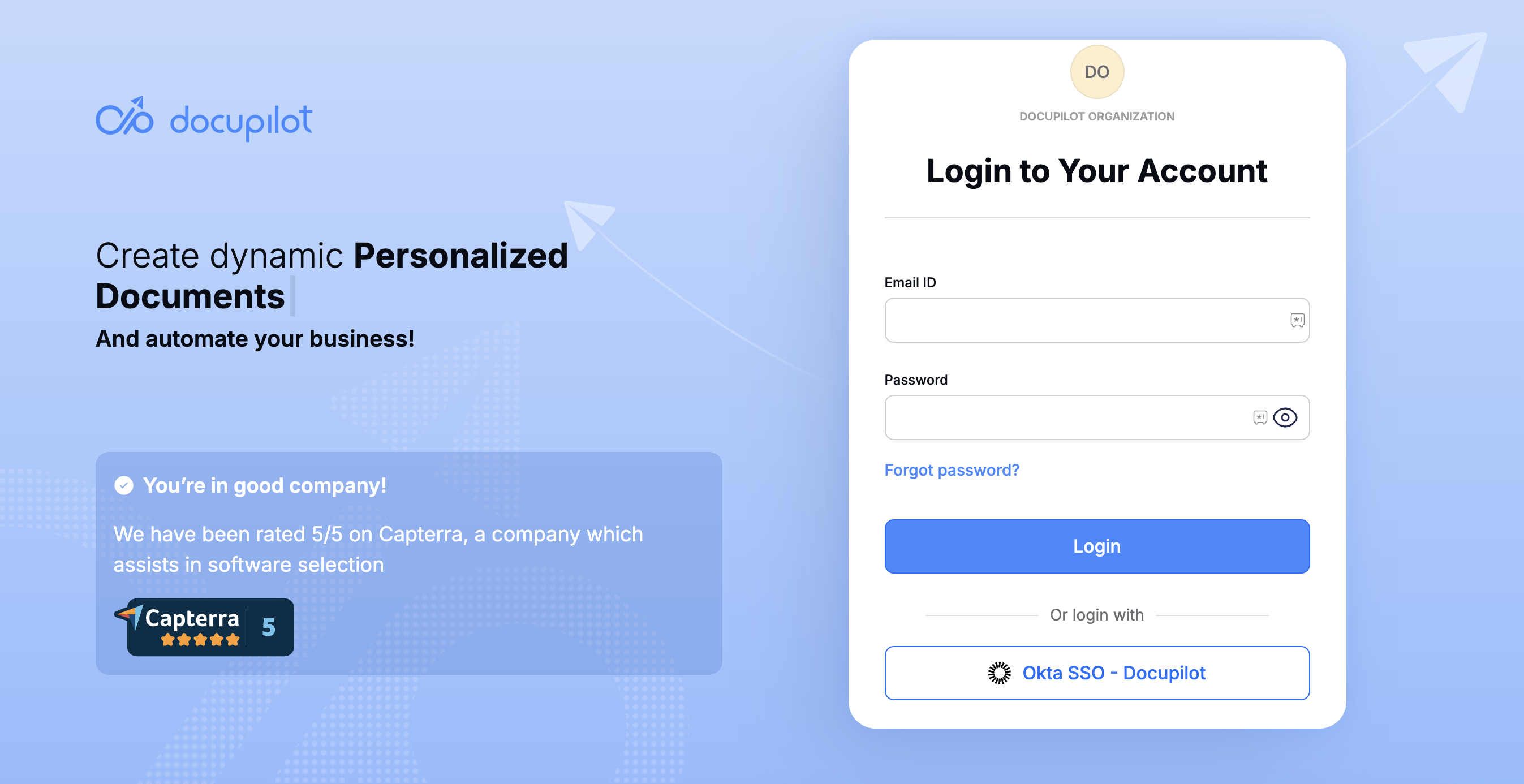
Login option with Okta SSO

Supported Features

Docupilot supports the following SAML features:

  • IdP-initiated SSO

  • SP-initiated SSO

  • Just-In-Time (JIT) provisioning

Supported SAML Attributes

Docupilot supports the following SAML attributes. These attributes are preconfigured in the Okta integration.

Attribute
Okta Mapping
Required

Email address

user.userName

Yes

First name

user.firstName

No

Last name

user.lastName

No

circle-info

• The Okta username (user.userName) must be a valid email address.

• The email address is used as the unique user identifier in Docupilot.

Deleting SSO Login Method

To delete the configured SSO Login method:

  1. Navigate to Login Methods tab in your Organization page

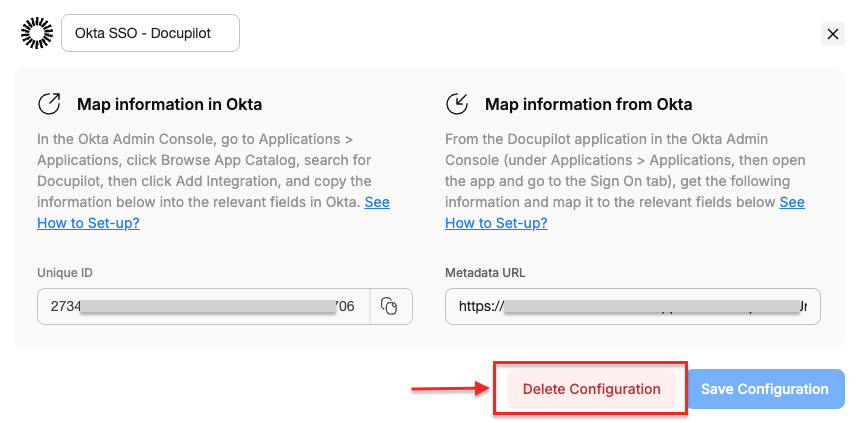
  2. Select the SSO method and click on Delete Configuration

Last updated