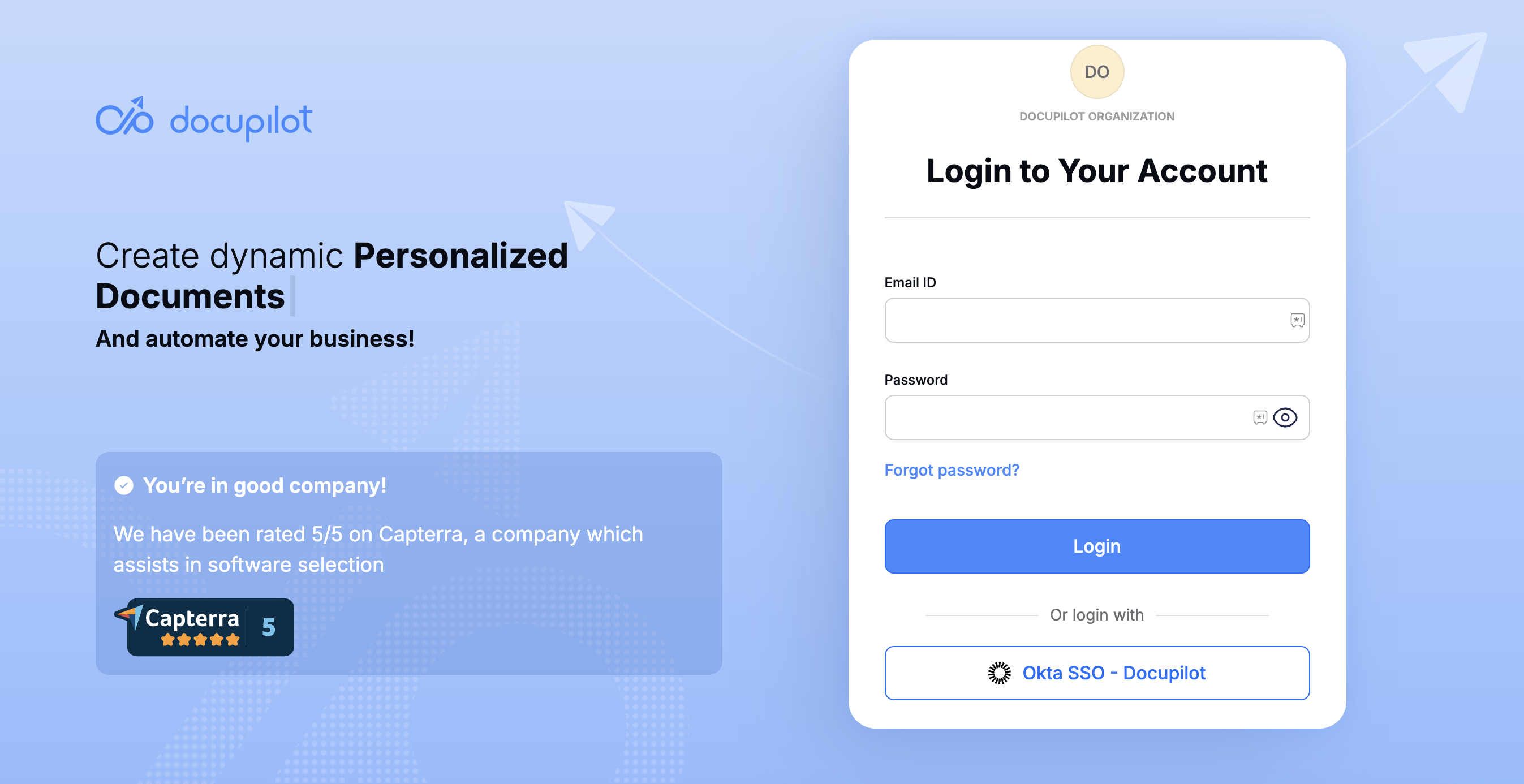
Okta SSO
Set up Okta as your SAML SSO provider for Docupilot.
Prerequisites
Ensure you have a verified domain added to your Docupilot Organisation. Learn more on adding a Verified Domain here.
To enable SAML Single Sign-On (SSO) with Okta, you need to be the organization owner in Docupilot.
Configuring Okta SSO
To enable Single Sign-On (SSO) on Docupilot using Okta, follow the steps below:
Step 1: Connect Okta in Docupilot

Navigate to Login Methods tab in your Organization settings.
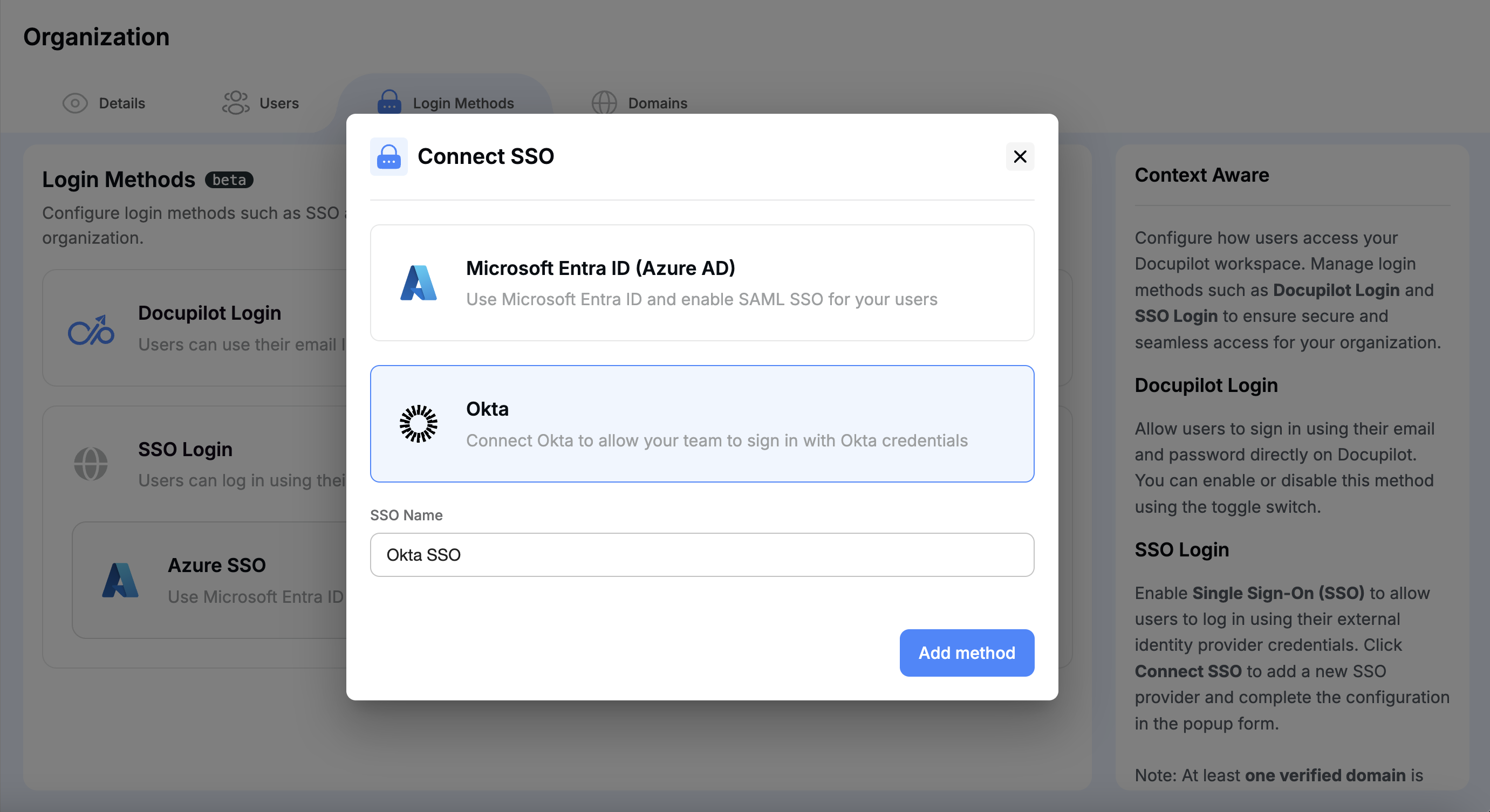
Click Connect SSO under SSO Login method, and select Okta from the list.
Enter a display name for this SSO connection (for your own reference).
Click Add method.

Adding Okta SSO Method
Step 2: Configure SAML SSO in Okta
A. Adding Docupilot App Integration
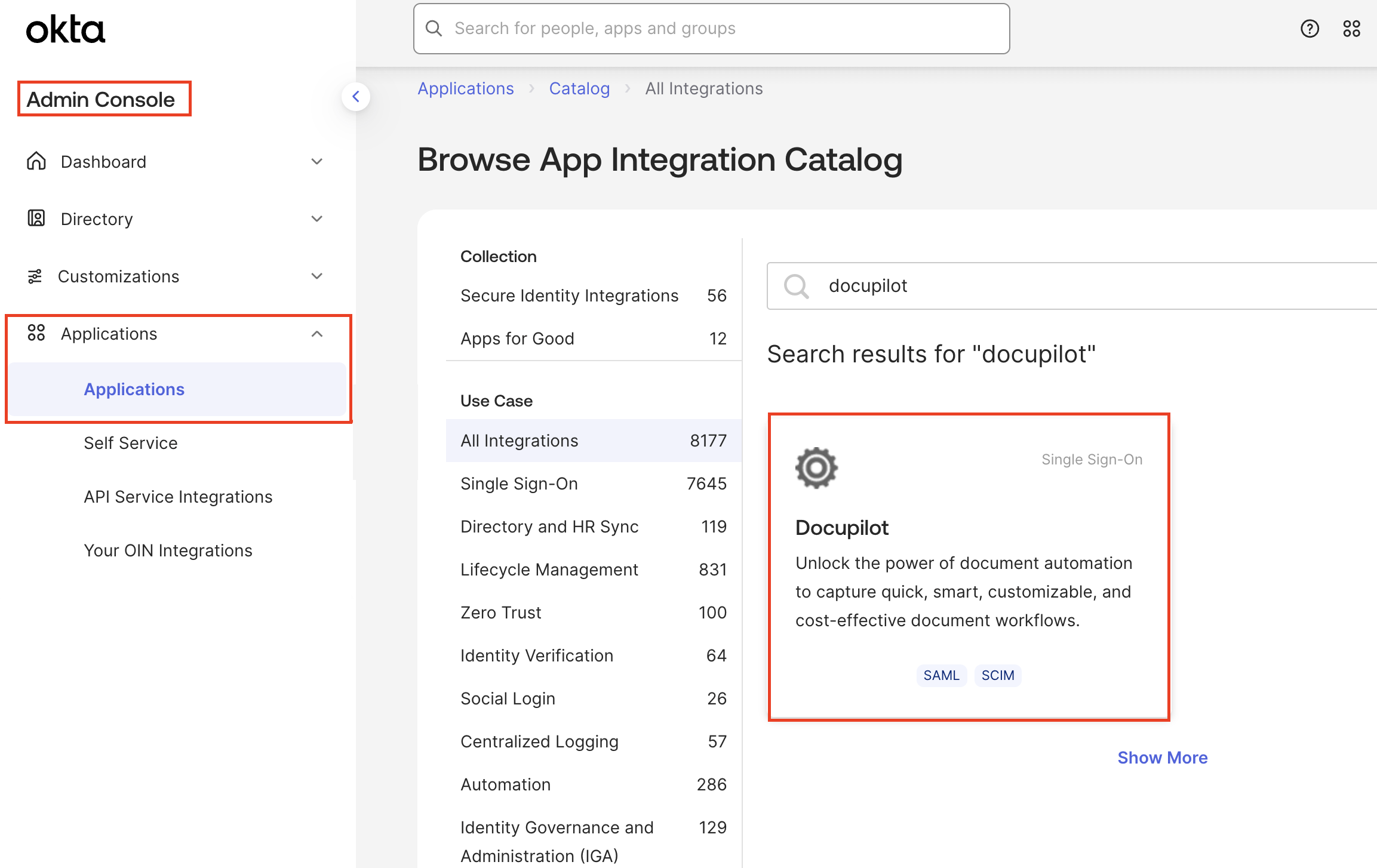
Log in to your Okta Admin Console.
Navigate to the Applications, click Browse App Catalog and search for Docupilot.
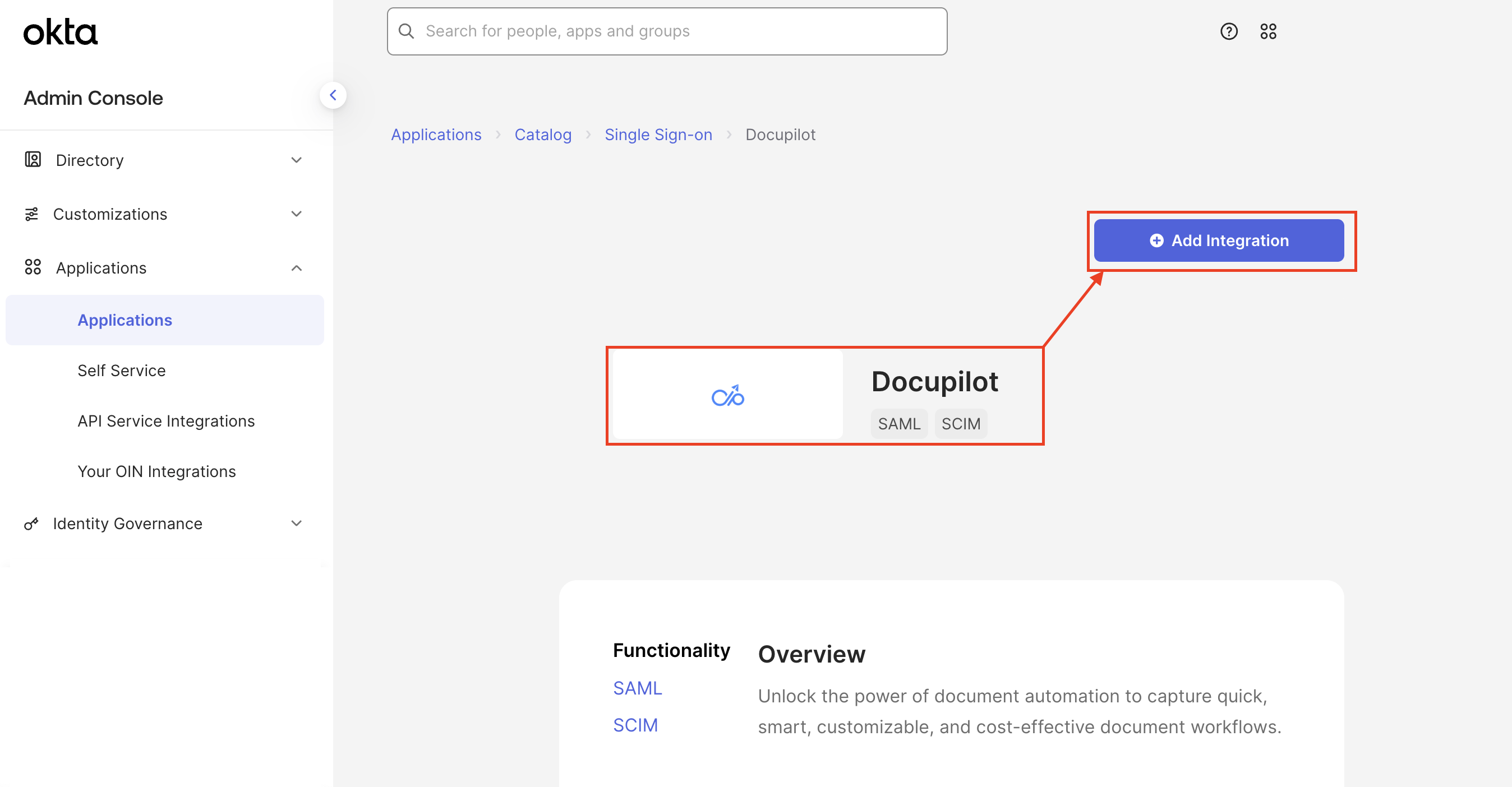
Select the Docupilot card and click on Add Integration.

Search for Docupilot on Okta 
Adding Docupilot Integration on Okta
B. Copy metadata from Docupilot to Okta
In the newly added integration,
Under General Settings set a desired Application label (ex: Docupilot)
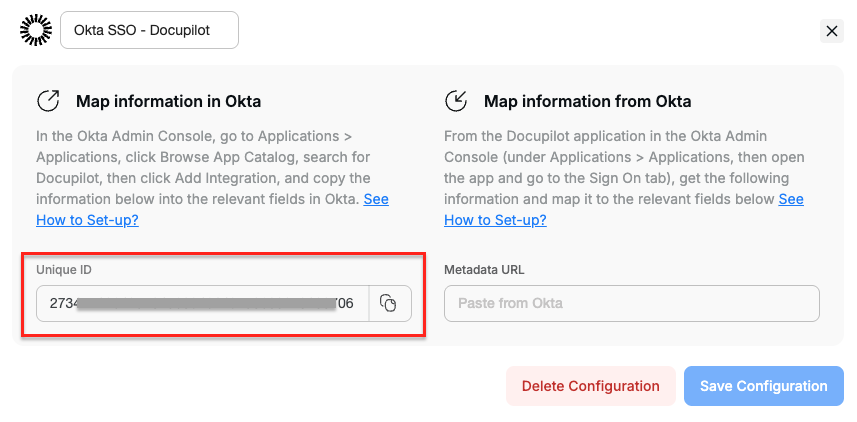
From Docupilot, copy the Unique ID from the set up window and paste it in the respective field in Okta.

Copy Unique ID for new Okta SSO Integration 
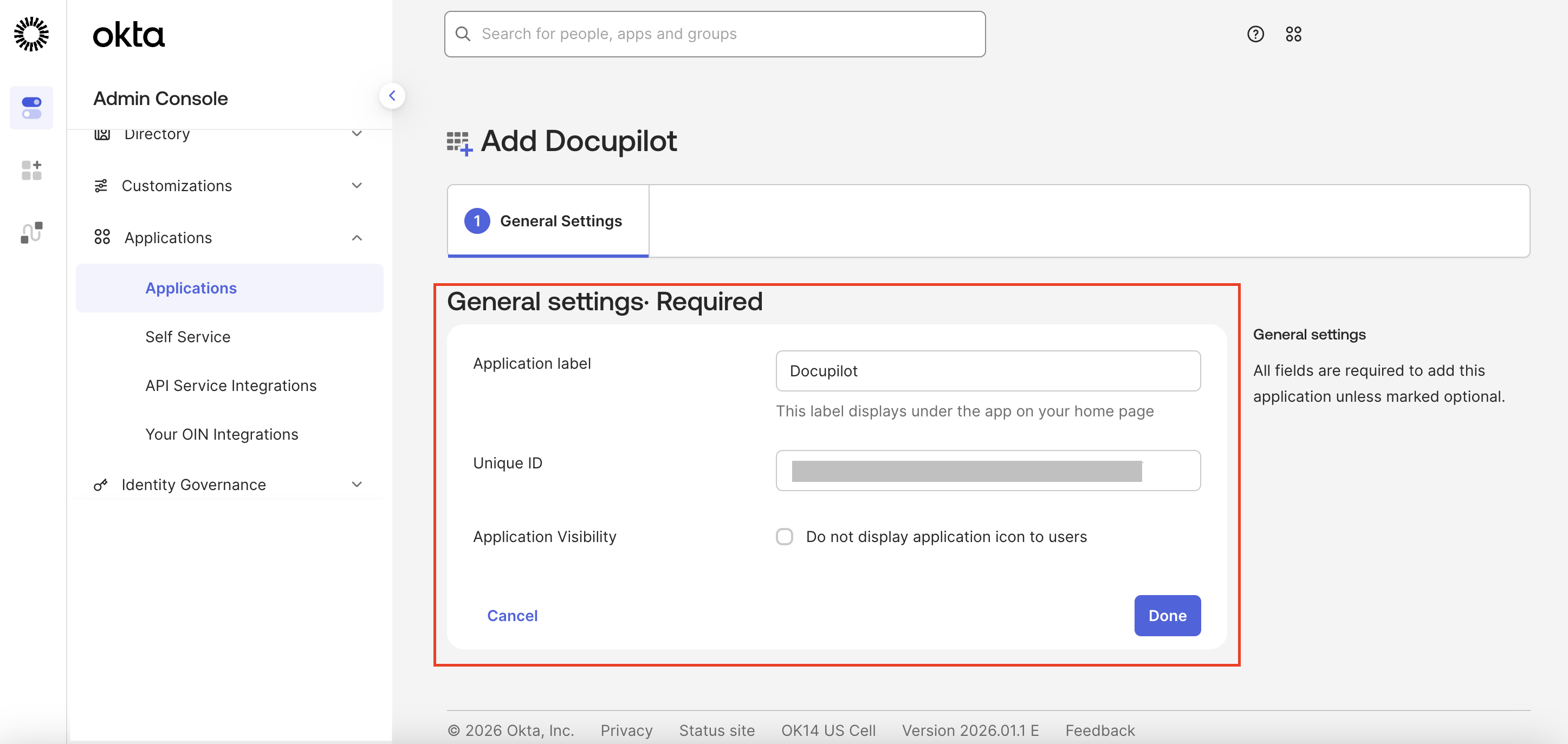
Paste the Unique ID from Docupilot into Okta
C. Copy metadata from Okta to Docupilot
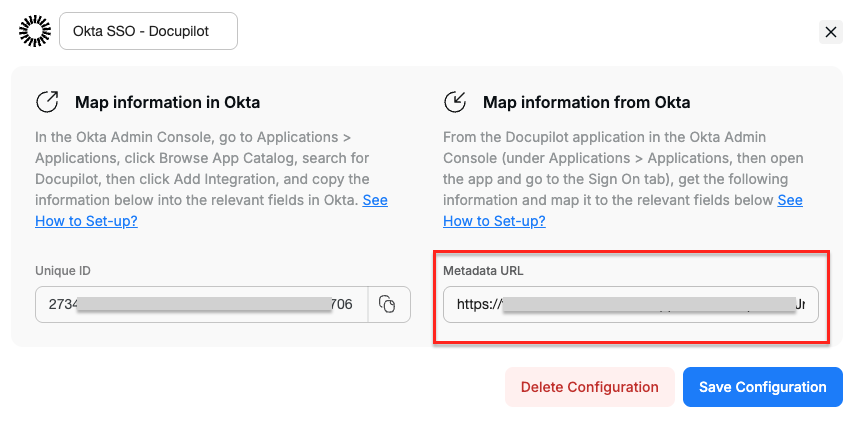
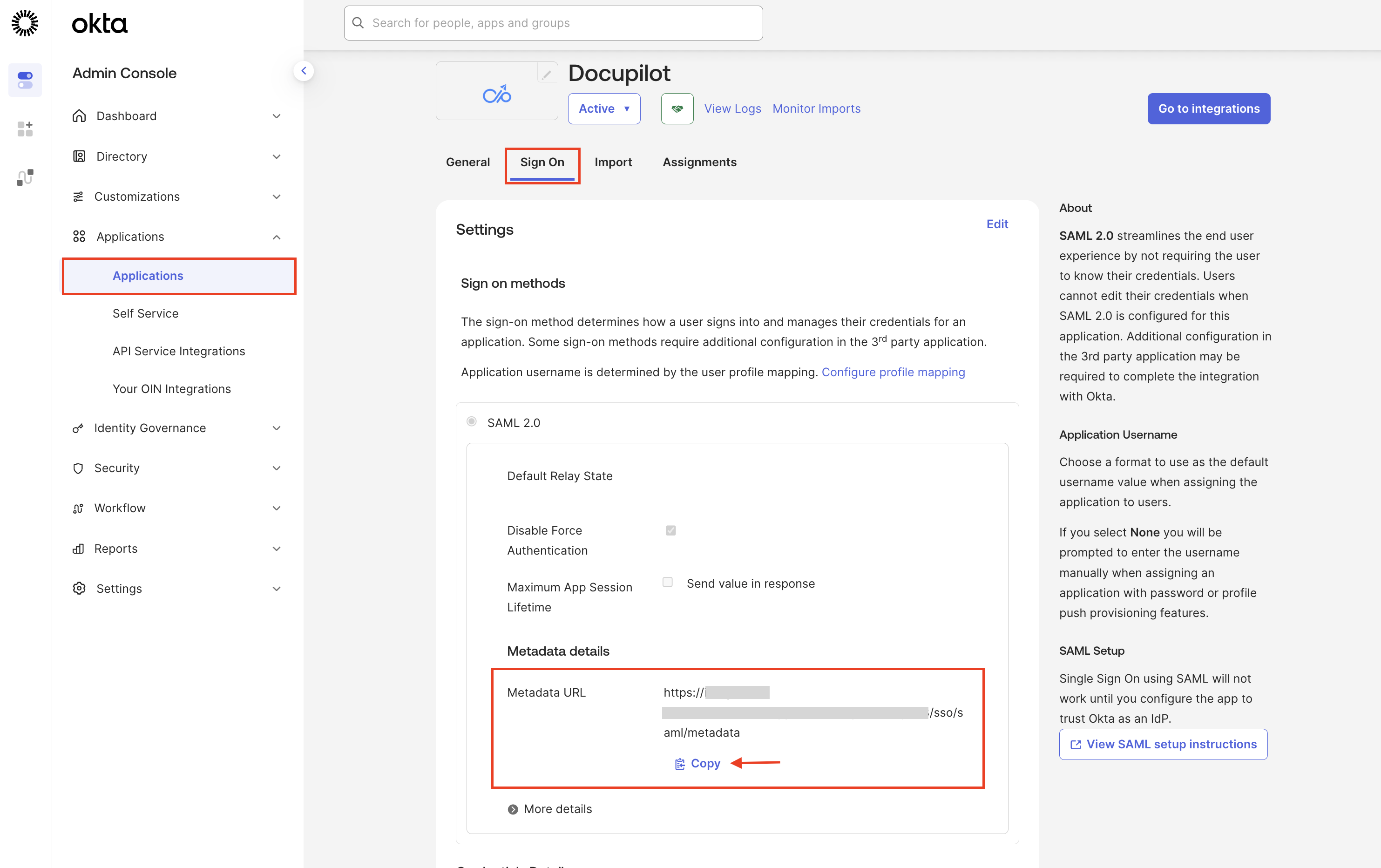
In Okta, under the newly created application, navigate to Sign On tab and copy the Metadata URL.

Copy Metadata URL from Okta Paste Metada URL in Docupilot and click Save Configuration

Paste Metada URL in Docupilot and Save Configuration Enable the newly added SSO Configuration in Docupilot to activate it.

Step 3: Login via Okta
Add users to your Docupilot Application in Okta. Read Assign applications to users for detailed steps. Once assigned, users can log in to Docupilot using Okta SSO from the Organization Login page. If a user doesn't already have an account under your organization, one will be created automatically upon first login.

Supported Features
Docupilot supports the following SAML features:
IdP-initiated SSO
SP-initiated SSO
Just-In-Time (JIT) provisioning
Supported SAML Attributes
Docupilot supports the following SAML attributes. These attributes are preconfigured in the Okta integration.
Email address
user.userName
Yes
First name
user.firstName
No
Last name
user.lastName
No
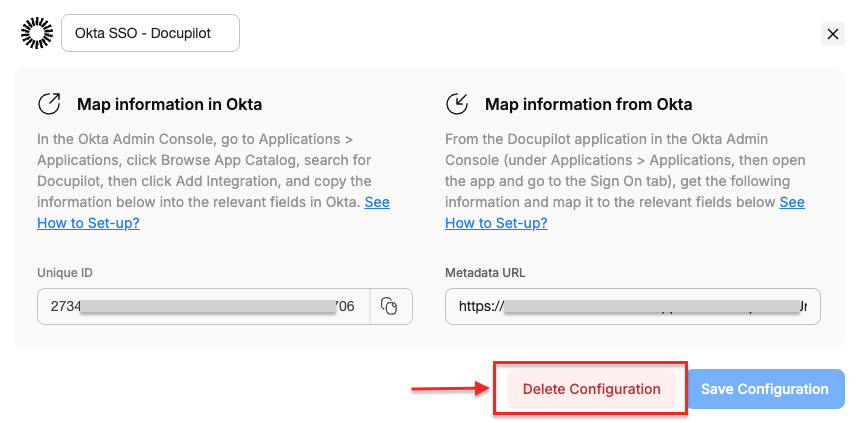
Deleting SSO Login Method
To delete the configured SSO Login method:
Navigate to Login Methods tab in your Organization page
Select the SSO method and click on Delete Configuration

Last updated
Was this helpful?