# Microsoft Entra ID SSO

## Prerequisites

* Ensure you have a verified domain added to your Docupilot Organisation. Learn more on adding a [Verified Domain here](https://help.docupilot.app/account-setup-and-administration/managing-your-org/verified-domains).
* To enable SAML Single Sign-On (SSO) with Microsoft Entra ID, you need to be the organization owner in Docupilot.

## Configuring Microsoft Entra ID SSO

To enable Single Sign-On (SSO) on Docupilot using Microsoft Entra ID, follow the steps below:

### Step 1: Connect Microsoft Entra ID in Docupilot

<figure><img src="https://191679573-files.gitbook.io/~/files/v0/b/gitbook-x-prod.appspot.com/o/spaces%2F-LDwD-wIOendMUiQ8uVr%2Fuploads%2F0CQhQa2HnDCIqUnGCh2a%2FScreenshot%202025-11-06%20at%2022.09.00.png?alt=media&#x26;token=cf78ed4c-b799-4379-bdf1-28a7f3cbfd93" alt="Connect SSO on your Docupilot account"><figcaption><p>Configuring Microsoft Entra ID SSO</p></figcaption></figure>

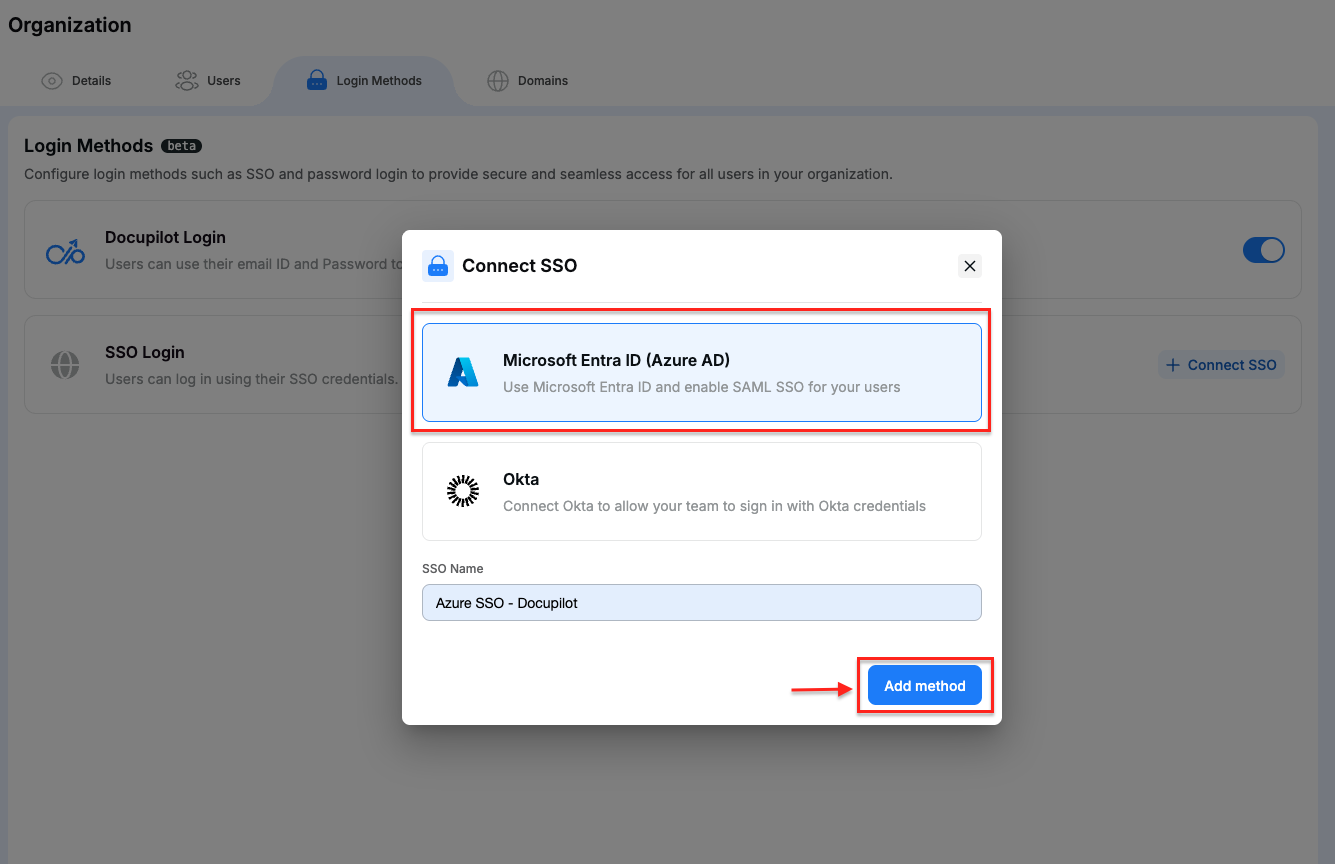
1. Navigate to **Login Methods** tab in your **Organization** settings.
2. Click **Connect SSO** under **SSO Login method**, and select **Microsoft Entra ID** from the list.
3. Enter a display name for this SSO connection.
4. Click **Add method**.

<figure><img src="https://191679573-files.gitbook.io/~/files/v0/b/gitbook-x-prod.appspot.com/o/spaces%2F-LDwD-wIOendMUiQ8uVr%2Fuploads%2F7akQ2pCadWYJC2STEQhg%2FScreenshot%202026-02-19%20at%203.41.38%E2%80%AFPM.png?alt=media&#x26;token=37f472e0-4e3e-4d6c-b926-cd18fb76b54e" alt=""><figcaption><p>Adding Microsoft Entra ID SSO Login Method</p></figcaption></figure>

### Step 2: Configure SAML SSO in Microsoft Entra ID

#### **A. Create an Application**

1. Log in to your Microsoft Entra admin center.
2. Navigate to the **Enterprise Applications**, click **New Application.**
3. Select **Create your own application** and enter a name for the application (ex: *Docupilot*).
4. Choose the option **Integrate any other application you don’t find in the gallery (Non-gallery)** and click on **Create.**

   <figure><img src="https://191679573-files.gitbook.io/~/files/v0/b/gitbook-x-prod.appspot.com/o/spaces%2F-LDwD-wIOendMUiQ8uVr%2Fuploads%2Fg0fl3uiUd6GrxT0golmG%2FCreating%20your%20own%20application.png?alt=media&#x26;token=5fbe3238-e17b-4477-95e9-c2272a3b16fb" alt=""><figcaption><p>Creating Application in Microsoft Entra ID</p></figcaption></figure>
5. Once created, select **Single sign-on** from the Manage section and select the **SAML** based sign-on method.<br>

   <figure><img src="https://191679573-files.gitbook.io/~/files/v0/b/gitbook-x-prod.appspot.com/o/spaces%2F-LDwD-wIOendMUiQ8uVr%2Fuploads%2FqkXXokcSHh0KSPuskmao%2FSelecting%20SAML.png?alt=media&#x26;token=e32e4e88-6b46-4b99-b297-512bbffa28a5" alt=""><figcaption><p>Selecting SAML Sign On method</p></figcaption></figure>

#### **B. Copy metadata from Docupilot to Entra ID**

In the **SAML** configuration:

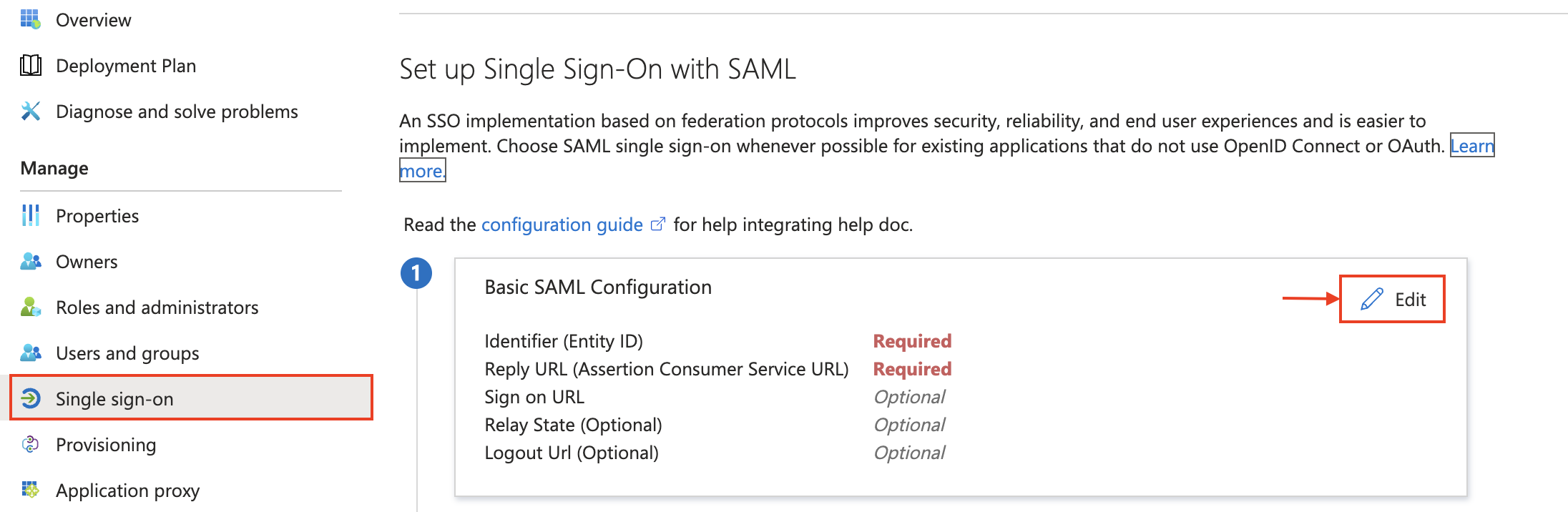
1. Click **Edit** under **Basic SAML Configuration.**<br>

   <figure><img src="https://191679573-files.gitbook.io/~/files/v0/b/gitbook-x-prod.appspot.com/o/spaces%2F-LDwD-wIOendMUiQ8uVr%2Fuploads%2FrBbRsC6078RjFlZGj0Sk%2FEdit%20Saml.png?alt=media&#x26;token=356ca5f0-ad47-43ed-819d-1fefd625163d" alt=""><figcaption><p>Editing Basic SAML Configuration in Azure</p></figcaption></figure>
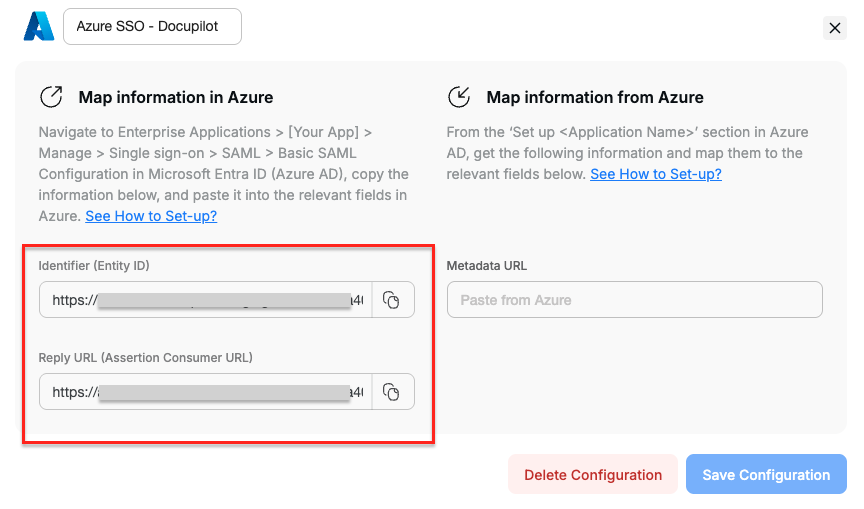
2. From Docupilot **copy** **Identifier** and **Reply** URL.<br>

   <figure><img src="https://191679573-files.gitbook.io/~/files/v0/b/gitbook-x-prod.appspot.com/o/spaces%2F-LDwD-wIOendMUiQ8uVr%2Fuploads%2FnZVoWhdNt3U8ToF0lLcT%2FCopy%20Metada%20DP.png?alt=media&#x26;token=ee1acfa9-6fb7-4fc0-8112-3e08a782a613" alt=""><figcaption><p>Copy Basic Configuration from Docupilot</p></figcaption></figure>
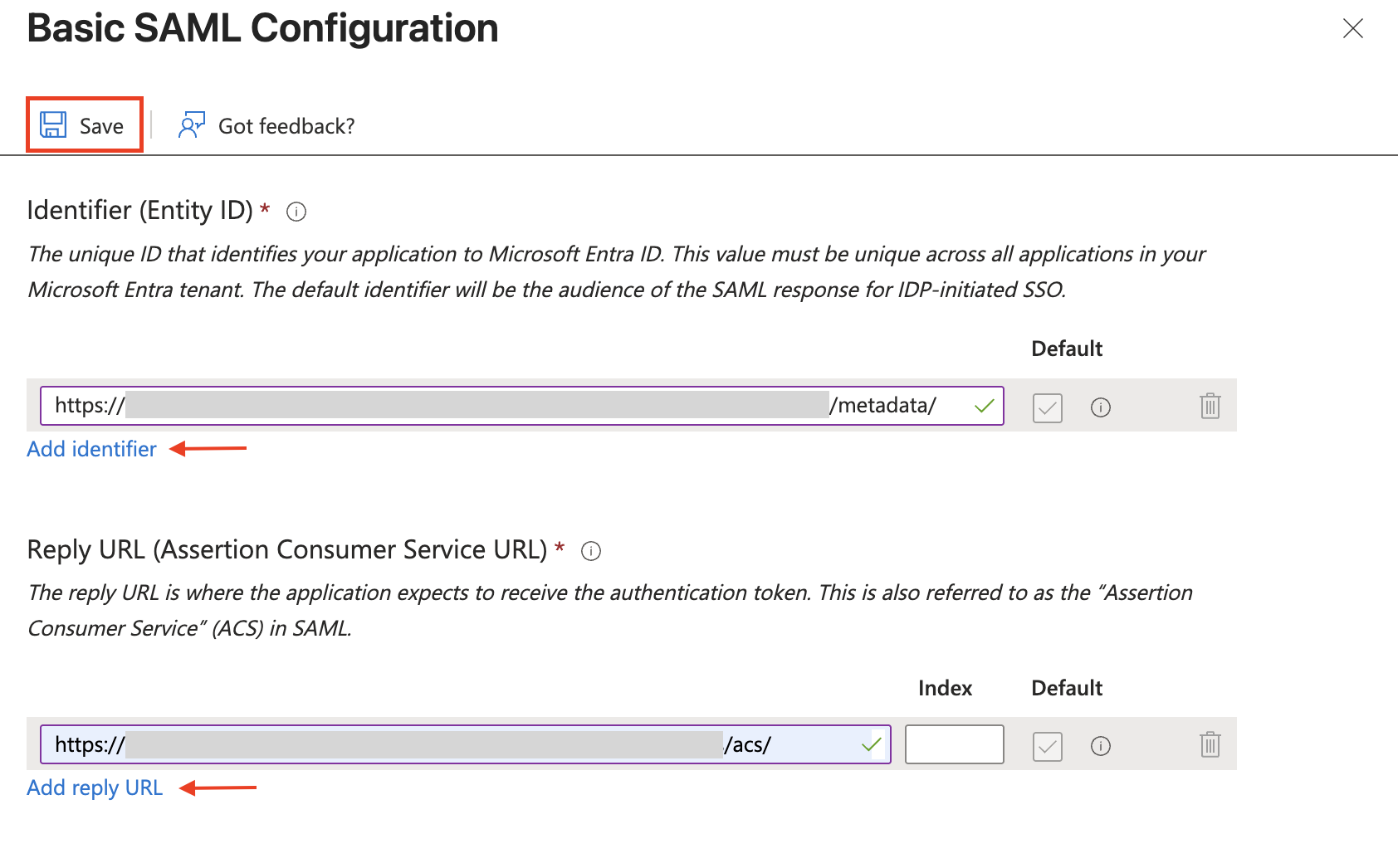
3. **Paste** them in respective fields in Microsoft Entra ID. **Save** the settings.

<figure><img src="https://191679573-files.gitbook.io/~/files/v0/b/gitbook-x-prod.appspot.com/o/spaces%2F-LDwD-wIOendMUiQ8uVr%2Fuploads%2F4OSruaxJDscHwG5GDCQd%2FAdd%20Docupilot%20metadata.png?alt=media&#x26;token=e707be9b-96f0-4cbf-8c13-9a411d100e47" alt=""><figcaption><p>Save Basic SAML Configuration in Microsoft Entra ID</p></figcaption></figure>

#### **C. Copy Metadata from Entra ID to Docupilot**

1. Click on **Edit** option in **SAML Certificates** section and select the **Signing option** as **Sign SAML response and assertion**. **Save** the change&#x73;**.** <br>

   <div align="center" data-full-width="true"><figure><img src="https://191679573-files.gitbook.io/~/files/v0/b/gitbook-x-prod.appspot.com/o/spaces%2F-LDwD-wIOendMUiQ8uVr%2Fuploads%2FgDtK6PvcvGWVF0MJOtLN%2FEdit%20SAML%20certificates.png?alt=media&#x26;token=d2e74e8a-e51d-45f3-bc84-22f64568e592" alt=""><figcaption><p>Selecting Signing options in Microsoft Entra ID</p></figcaption></figure></div>
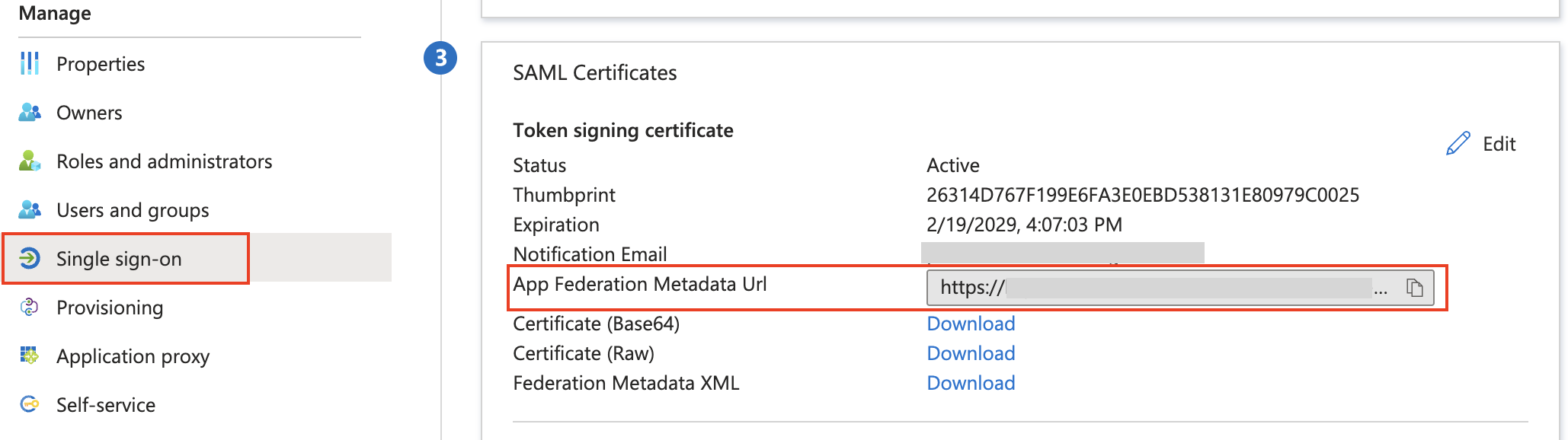
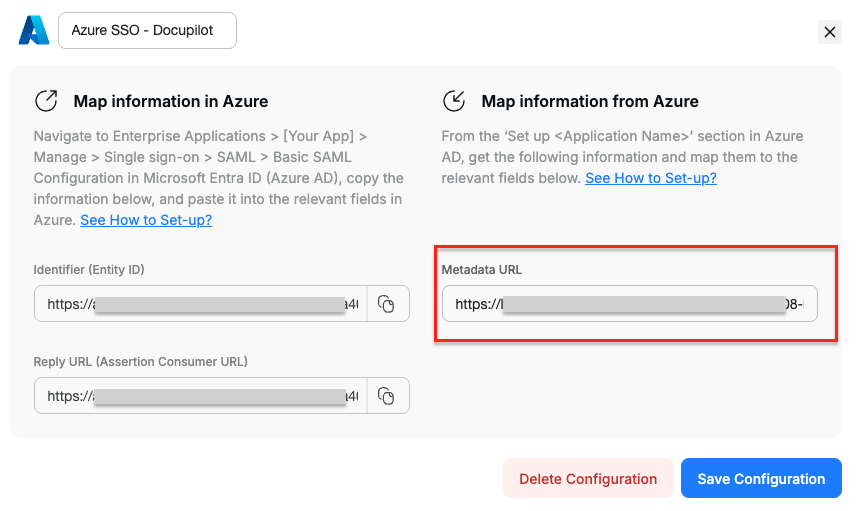
2. In the **SAML Certificates** section copy **App Federation Metadata Url** and **paste** it in the respective field in Docupilot

   <div><figure><img src="https://191679573-files.gitbook.io/~/files/v0/b/gitbook-x-prod.appspot.com/o/spaces%2F-LDwD-wIOendMUiQ8uVr%2Fuploads%2FpR1kl51aSKmRGsk3yr5F%2Fcopy%20url%20from%20Azure.png?alt=media&#x26;token=06c26a3a-32a8-4ace-8646-cfcce5be7807" alt=""><figcaption><p>Copy Metadata URL from Microsoft Entra ID</p></figcaption></figure> <figure><img src="https://191679573-files.gitbook.io/~/files/v0/b/gitbook-x-prod.appspot.com/o/spaces%2F-LDwD-wIOendMUiQ8uVr%2Fuploads%2FNDC6tXPphhtid7d8ONC5%2FPaste%20data%20from%20Azure%20in%20DP.png?alt=media&#x26;token=11043c5a-693a-40ce-b54b-5db85417f585" alt=""><figcaption><p>Paste Metadata in Docupilot</p></figcaption></figure></div>
3. **Save Configuration** in Docupilot.
4. **Enable** the SSO Configuration to activate it.

<figure><img src="https://191679573-files.gitbook.io/~/files/v0/b/gitbook-x-prod.appspot.com/o/spaces%2F-LDwD-wIOendMUiQ8uVr%2Fuploads%2F7CzwOwCKFpscDejui3b2%2FScreenshot%202026-02-19%20at%204.18.34%E2%80%AFPM.png?alt=media&#x26;token=8772b50d-9561-4e80-a3f2-b0eb0bbbd409" alt=""><figcaption><p>Enabling Microsoft Entra ID SSO</p></figcaption></figure>

### Step 3: Login via Microsoft Entra ID

Add users to your Microsoft Entra ID Enterprise Application. Read [Invite, assign and unassign users](https://learn.microsoft.com/en-us/entra/identity/enterprise-apps/assign-user-or-group-access-portal?pivots=portal) for detailed steps. Once assigned, users can log in to Docupilot using Microsoft Entra ID SSO from the Organization Login page. If a user doesn't already have an account under your organization, one will be created automatically upon first login.

<figure><img src="https://191679573-files.gitbook.io/~/files/v0/b/gitbook-x-prod.appspot.com/o/spaces%2F-LDwD-wIOendMUiQ8uVr%2Fuploads%2FqRntqoleWxD6s73wxVSY%2FScreenshot%202025-10-31%20at%202.34.30%E2%80%AFPM.png?alt=media&#x26;token=1663d8d1-d2a9-486c-b554-9805fa52c675" alt=""><figcaption><p>Login option with Microsoft Entra ID SSO</p></figcaption></figure>

## Deleting SSO Login Method

To delete the configured SSO Login method:

1. Navigate to **Login Methods** tab in your **Organization** page
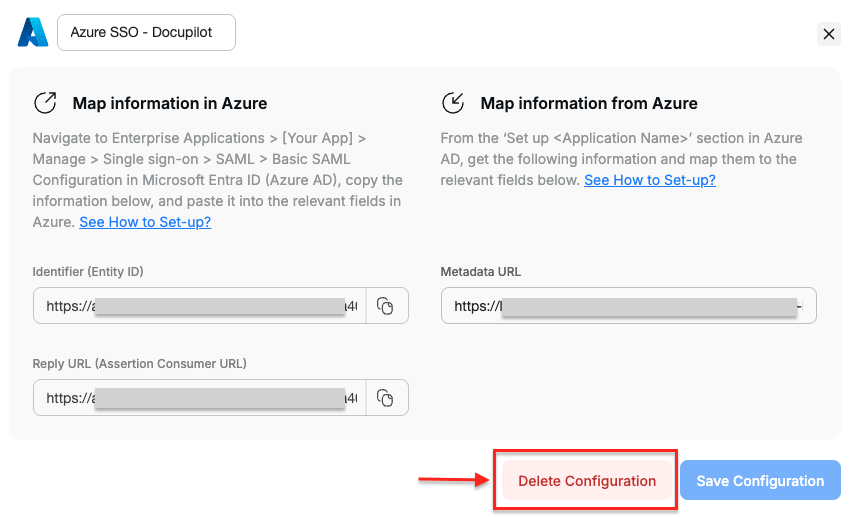
2. Select the SSO method and click on **Delete Configuration.**

<figure><img src="https://191679573-files.gitbook.io/~/files/v0/b/gitbook-x-prod.appspot.com/o/spaces%2F-LDwD-wIOendMUiQ8uVr%2Fuploads%2FAZh6QPAiTmGF0XdSi7Un%2FScreenshot%202026-02-19%20at%204.20.34%E2%80%AFPM.png?alt=media&#x26;token=412df9ea-8124-4176-ac6b-558266987bb1" alt=""><figcaption><p>Deleting Microsoft Entra ID SSO Login Method</p></figcaption></figure>